Post ·
Using the Microsoft MAP Toolkit for Estate Discovery
The MAP Toolkit inventories an estate for migration planning. Run it end to end for discovery, then hand off to Azure Migrate where MAP stops.
Written in 2023 and updated in 2026. Microsoft now recommends Azure Migrate for anything headed to Azure. MAP is still available (version 9.9, July 2024) and still useful for agentless inventory and licensing questions.
What MAP is
The Microsoft Assessment and Planning (MAP) Toolkit inventories a network without installing agents. It connects to machines over standard protocols, collects hardware, software and performance data, and turns it into assessment reports for infrastructure planning.
I use it on most client engagements to get a first, factual picture of an estate before anyone starts designing: what's there, what it runs, and how hard it's working.
MAP or Azure Migrate?
- Use Azure Migrate when the question is "how do we move this to Azure?" It discovers, assesses, maps dependencies, estimates cost and then migrates. I cover it in the Citrix to Azure Virtual Desktop guide.
- Use MAP when the question is "what do we actually have?" — a broad inventory across Windows, Linux, SQL Server and virtualization hosts, or usage data for a licensing true-up.
How a MAP run works
1. Choose your goal
Decide what you need to answer — inventory, a readiness assessment, capacity planning or software usage tracking — because that decides which wizard you run, what you select in it, and which collection protocols it uses.
2. Gather credentials
MAP connects to each machine with credentials you supply, and what it can see depends on the OS, firewalls and endpoint security on the targets. Collect the accounts you need before the run, not during it.
3. Prepare the environment
Open the paths MAP uses for your goal:
- WMI for Windows machines.
- Active Directory Domain Services to discover machines.
- SQL Server connections for database discovery.
- VMware web services for vCenter and ESXi hosts.
- SSH for Linux machines.
4. Install MAP
Download it free from the Microsoft Download Center and install it on a Windows machine that can reach the targets.
5. Collect data
Two wizards do the work:
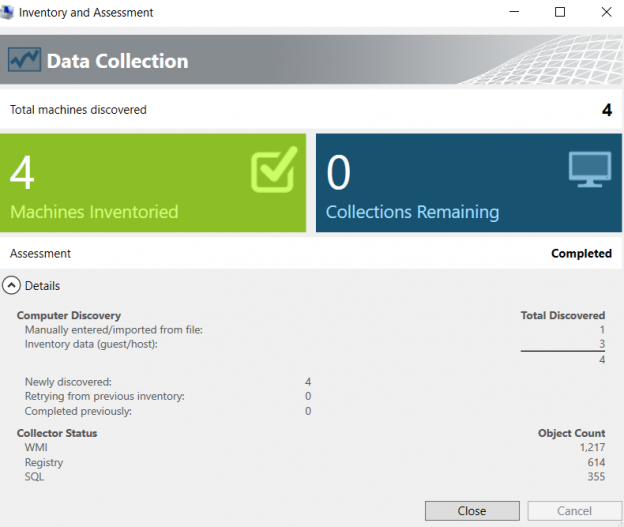
- Inventory and Assessment Wizard: the starting point for every scenario. Pick the scenario, the discovery method, and the credentials from steps 2 and 3.
- Performance Metrics Wizard: collects CPU, memory, disk and network use from Windows and Linux machines over a period you choose. Capacity planning and consolidation reports need it.
6. Review the reports
MAP writes Excel and Word reports specific to what it inventoried.
The reports worth pulling
MAP ships dozens of report packages, and many target products long out of support. The ones that still earn their keep fall into a few groups:
- Inventory: Windows and Linux environment summaries, inventory results for every machine, and active devices and users in Active Directory.
- Licensing and usage tracking: Windows Server, SQL Server, SharePoint, Exchange, Configuration Manager and Remote Desktop licensing — who and what connects to each, which feeds a true-up.
- Databases: SQL Server discovery and instance details for consolidation, plus Oracle discovery.
- Virtualization: virtual machine discovery across Hyper-V and VMware hosts, server consolidation recommendations, and performance metrics.
- Azure readiness and capacity: a quick first read on which servers could run as Azure VMs and at what size. For a real plan, use Azure Migrate.
Skip the packages for Windows 7 and 8, older Windows Server releases, Office 2010 and 2013, Internet Explorer and Lync unless you're documenting a very old estate.