Post ·
Disconnecting Azure AD Connect
Retire Azure AD Connect (now Entra Connect): confirm cloud sign-in, uninstall the sync client, then turn off directory sync. Allow up to 72 hours.

Why you would remove it
Azure AD Connect — renamed Microsoft Entra Connect — syncs on-premises Active Directory into your Microsoft cloud tenant. Most tenants never turn it off. Removing it is deliberate work: retiring on-premises AD, consolidating tenants, or moving to cloud-only identity where the on-premises directory is no longer the source of truth.
I did this on a client migration from Citrix in a third-party datacenter to Azure Virtual Desktop, where the identity path was redesigned along with the desktops.
Know this before you start
- Check how users sign in. If your domains are federated (AD FS) or use pass-through authentication, sign-in still depends on on-premises servers. Convert them to cloud authentication before you retire that infrastructure, or users lose the ability to sign in.
- Order matters: uninstall first, then turn sync off. Microsoft's current guidance is to uninstall the sync client before disabling sync in the tenant. The reverse order leaves the portal showing a confusing sync status.
- You can't change your mind quickly. After you turn sync off, you must wait 72 hours before you can turn it back on. If this is exploratory rather than a committed cutover, stop here.
- Synced users become cloud-only. Turning sync off converts synced users and groups to cloud-only objects. From then on you manage them in Entra ID, not in on-premises AD.
- It isn't instant. The change takes time to propagate, longer in large tenants. Plan a window and check the state rather than assuming it.
Step 1 — Uninstall the sync client on-premises
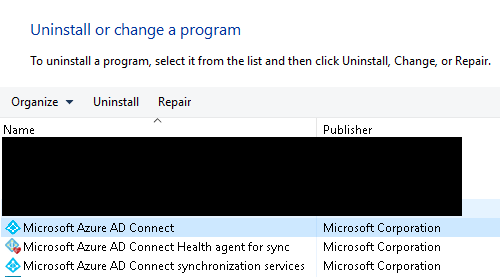
On the server running Azure AD Connect, uninstall it from Programs and Features. This removes the sync engine; the tenant still thinks sync is on until Step 2.
Step 2 — Turn off directory sync in the tenant
Use Microsoft Graph PowerShell, signed in as a Hybrid Identity Administrator:
Install-Module Microsoft.Graph -Force
Connect-MgGraph -Scopes "Organization.ReadWrite.All,Directory.ReadWrite.All"

# Check the current state
Get-MgOrganization | Select OnPremisesSyncEnabled

# Turn sync off
$orgId = (Get-MgOrganization).Id
Update-MgOrganization -OrganizationId $orgId -BodyParameter @{ onPremisesSyncEnabled = $false }

# Re-run the check until sync shows as off
Get-MgOrganization | Select OnPremisesSyncEnabled
Microsoft's current walkthrough: Turn off directory synchronization.
If you're following an older guide
Guides written before 2024 — including the first version of this post — use the MSOnline module:
Set-MsolDirSyncEnabled -EnableDirSync $falseMicrosoft has retired MSOnline, so that no longer works; the Graph commands above replace it. Older guides also tend to disable sync before uninstalling the client. Current guidance reverses that.